5 Phone Battery Life Hacks That Actually Work
No app installs, no gimmicks - just five phone settings and habits that can help your battery last longer.
Is your phone battery draining faster than it used to? You're not alone - and the good news is, most of the culprits are hiding in a handful of settings you can fix in under two minutes each. Below are 5 tested fixes, explained step-by-step, so you can actually follow along instead of just being told "lower your brightness" with no idea where that setting even is.
1. Lower Your Screen Brightness
Your screen is the single biggest battery drainer on almost any phone - more than your camera, your apps, or your notifications combined.
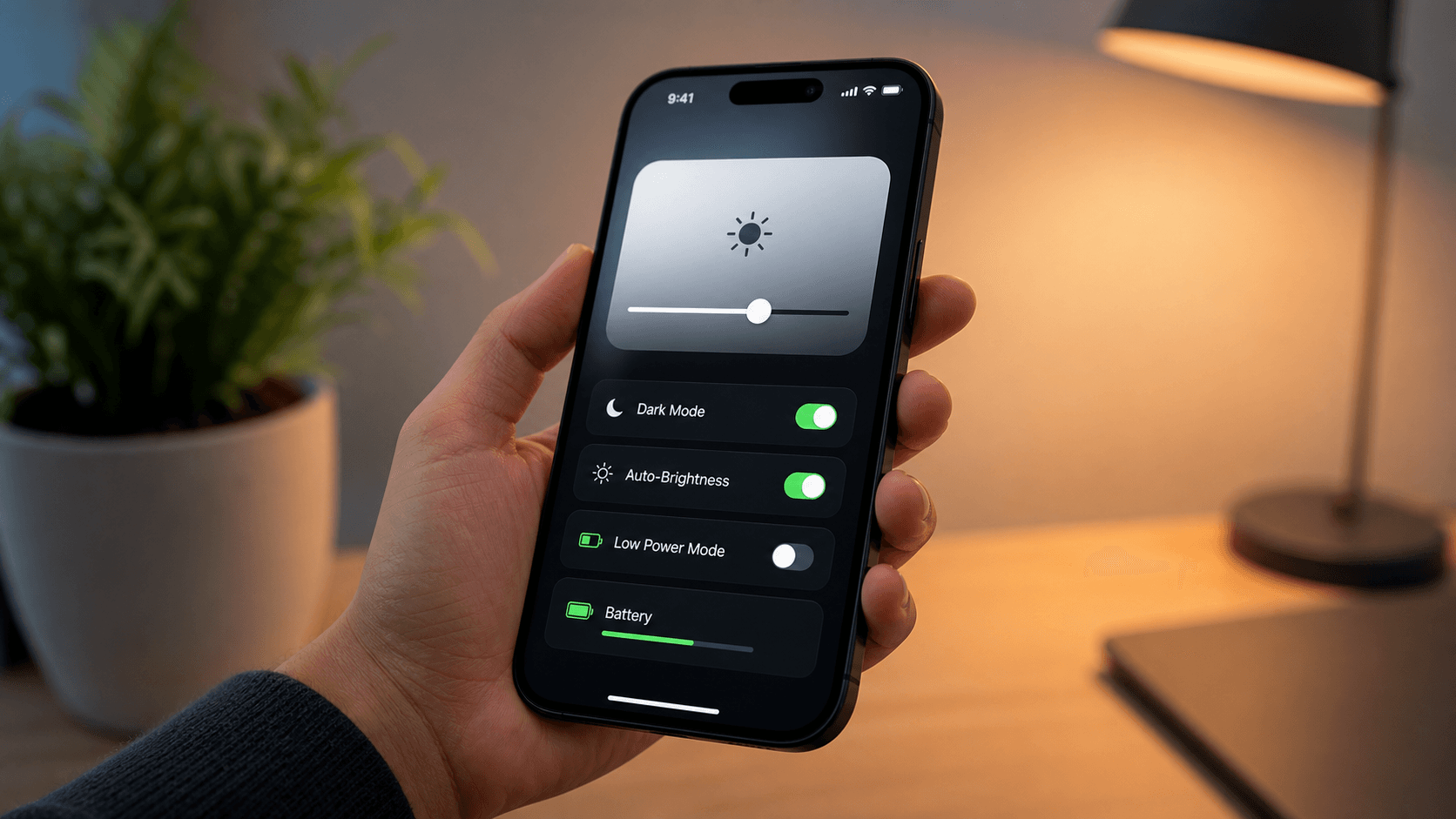
How to do it (Android): 1. Swipe down from the top of your screen to open the notification shade 2. Find the brightness slider, usually the first thing you see 3. Drag it down to around 40-50% for indoor use 4. Turn on Adaptive Brightness in Settings -> Display, so your phone automatically adjusts based on lighting
How to do it (iPhone): 1. Open Control Center by swiping down from the top-right corner 2. Drag the brightness slider down 3. Go to Settings -> Accessibility -> Display & Text Size -> enable Auto-Brightness
Why it works: The display panel uses power proportional to brightness. Dropping from 100% to 50% can noticeably extend your screen-on time.
2. Close Background Apps
Apps left open in the background can keep syncing data, checking location, and refreshing content while draining your battery silently.
How to do it (Android): 1. Tap the recent apps button or use the swipe-up gesture 2. Swipe away apps you're not actively using 3. For repeat offenders, go to Settings -> Apps -> app name -> Battery -> set to Restricted
How to do it (iPhone): 1. Swipe up from the bottom and pause in the middle to open the app switcher 2. Swipe up on each app card to close it 3. Go to Settings -> General -> Background App Refresh and turn off apps that do not need it
Why it works: Background refresh is one of the most common hidden battery drains. Most people never realize how many apps are quietly active.
3. Turn Off Location Services for Apps That Don't Need It
GPS is power-hungry, and many apps request your location far more often than necessary.
How to do it (Android): 1. Go to Settings -> Location 2. Tap App permissions 3. For apps that do not need constant location, switch them to Ask every time or Deny
How to do it (iPhone): 1. Go to Settings -> Privacy & Security -> Location Services 2. Tap through each app 3. Change non-essential apps from Always or While Using to Never unless the app genuinely needs it
Why it works: Constant GPS polling in the background is one of the most overlooked battery killers.
4. Use Dark Mode
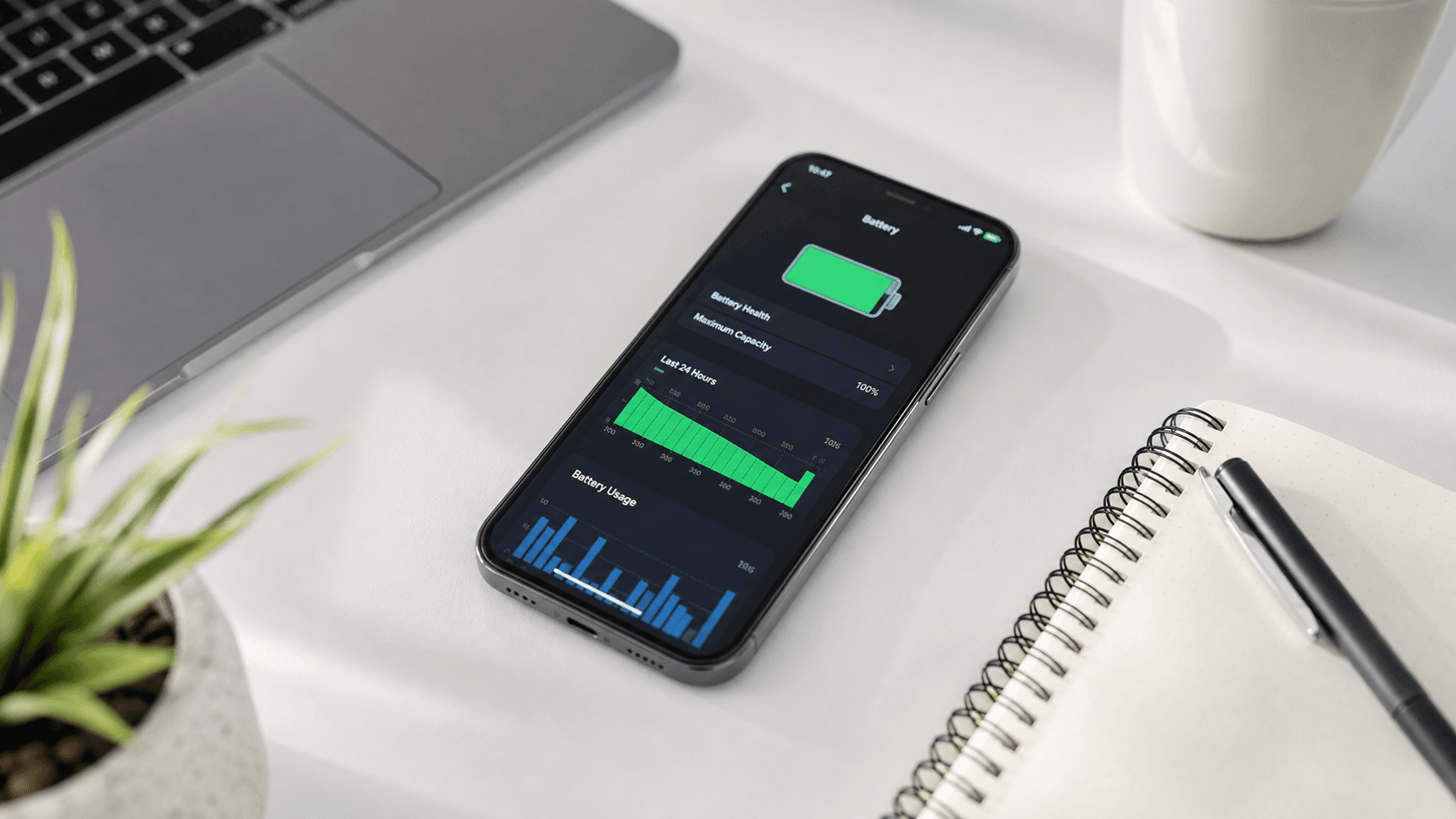
If your phone has an AMOLED or OLED screen, dark mode is not just a style choice. It can directly save power.
How to do it (Android): 1. Go to Settings -> Display 2. Toggle Dark mode on 3. Optionally schedule it to turn on automatically at sunset
How to do it (iPhone): 1. Go to Settings -> Display & Brightness 2. Select Dark under Appearance 3. Tap Automatic to schedule it based on time of day
Why it works: On AMOLED/OLED screens, black pixels are turned off rather than dimmed, so darker interfaces can use less power.
5. Avoid Extreme Heat
This one is not about a setting. It is about a habit. Heat is one of the fastest ways to degrade battery health permanently.
What to do: 1. Avoid leaving your phone on a car dashboard, windowsill, or anywhere in direct sunlight 2. If your phone feels hot, remove the case temporarily to let it cool down 3. Avoid charging your phone while it is in direct sun or under a pillow or blanket 4. If you see a temperature warning, stop using the phone for a few minutes and let it cool
Why it works: Lithium-ion batteries chemically degrade faster at high temperatures. This affects both today's battery percentage and long-term battery capacity.
Quick Recap
| Hack | Time to fix | Impact |
|---|---|---|
| Lower brightness | 30 seconds | High |
| Close background apps | 1 minute | High |
| Turn off location services | 2 minutes | Medium |
| Use dark mode | 30 seconds | Medium |
| Avoid heat | Ongoing habit | High |
None of these require installing a single app or spending any money. Try all five today and see the difference by tomorrow.
Found this useful?
Send it to someone who should read it.